

Getting started
Resources
Welcome to the ALEAS Board Help Center!
🔹 Quick Guide
All features at a glance: This compact guide gives you a short introduction to all key features.
🔹 Cheat Sheet
The cheat sheet gives you a quick overview of where to find the most important elements on the board. Perfect for fast orientation.
Getting started
User Profile
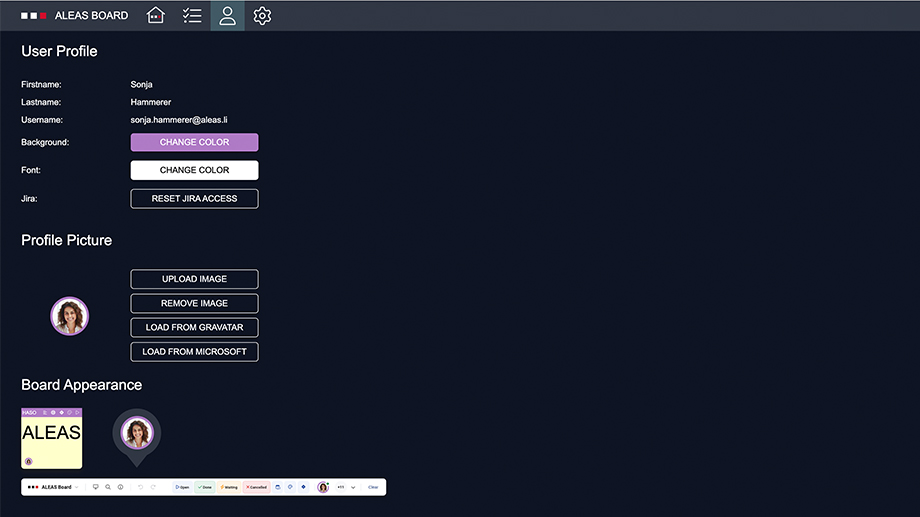
In your user profile settings, you can choose your preferred sticky note background and font color, as well as upload a personal avatar image. This affects the appearance of your sticky notes and your user icon. Your avatar is displayed on sticky notes as well as in the Filter Bar.
Getting started
Performance Improvements
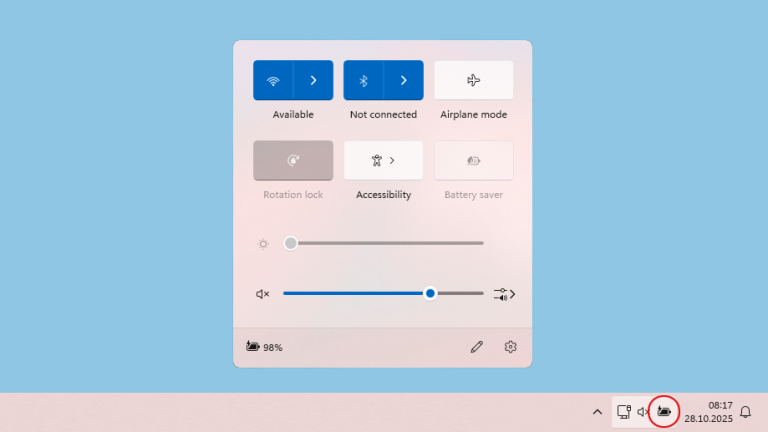
1. Click on the battery icon in the bottom right of your computer’s taskbar (Windows).
→ A popup window will open.
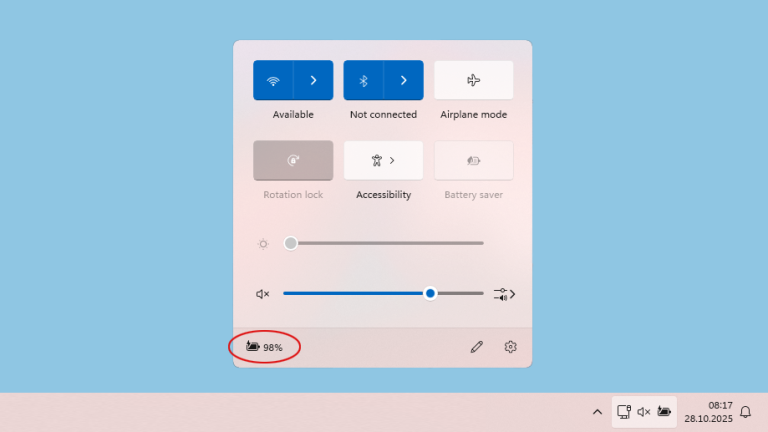
2. Click the battery icon again in the popup window.
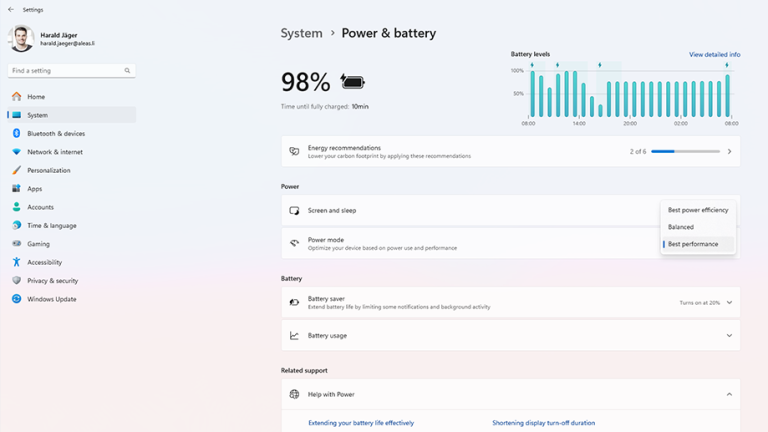
→ A window with the battery settings will open.
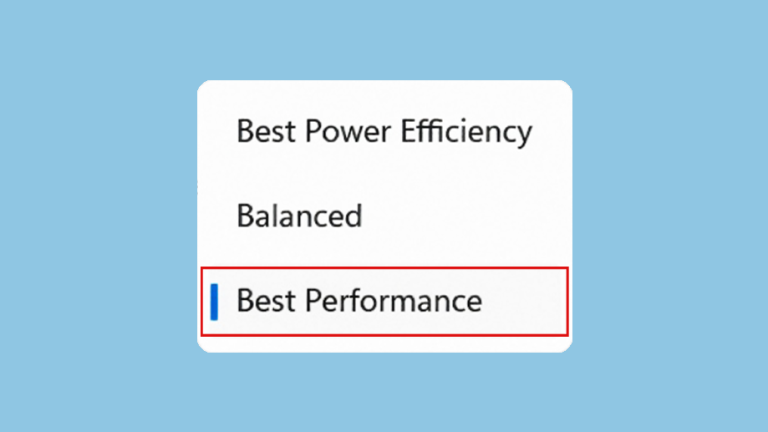
3. Under “Power Mode”, select “Best Performance”.
⚠️ Important note:
Afterwards, unplug the power supply and check the setting again. Make sure that “Best Performance” is also selected when running on battery power.
Getting started
Sensitivity Settings
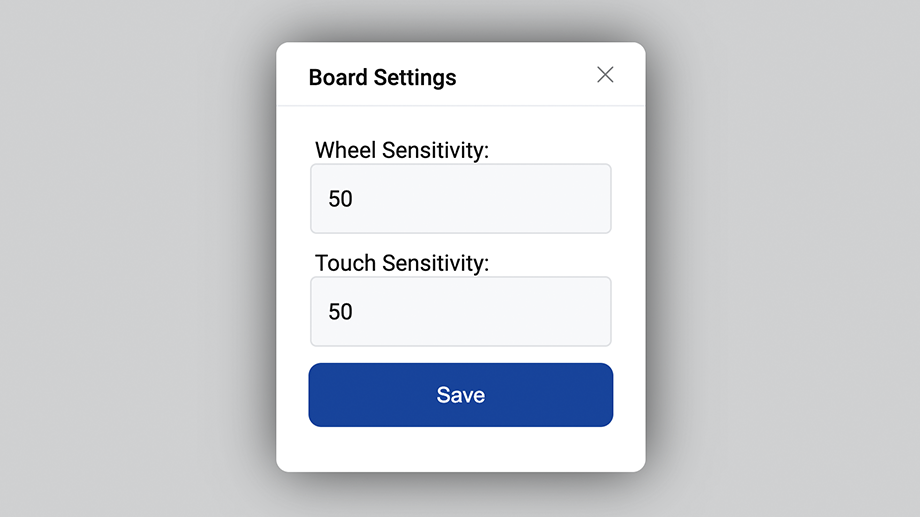
The sensitivity settings are located under “Board Settings” next to the board title in the top-left corner. You can manually adjust touch and wheel sensitivity to suit your device’s specific configuration.
Getting started
Support
If you have any questions, feel free to send us a message. Our support team will be happy to help!
Getting started
Resources
Welcome to the ALEAS Board Help Center!
🔹 Quick Guide
All features at a glance: This compact guide gives you a short introduction to all key features.
🔹 Cheat Sheet
The cheat sheet gives you a quick overview of where to find the most important elements on the board. Perfect for fast orientation.
Getting started
User Profile
In your user profile settings, you can choose your preferred sticky note background and font color, as well as upload a personal avatar image. This affects the appearance of your sticky notes and your user icon. Your avatar is displayed on sticky notes as well as in the Filter Bar.
Getting started
Performance Improvements
1. Click on the battery icon in the bottom right of your computer’s taskbar (Windows).
→ A popup window will open.
2. Click the battery icon again in the popup window.
→ A window with the battery settings will open.
3. Under “Power Mode”, select “Best Performance”.
⚠️ Important note:
Afterwards, unplug the power supply and check the setting again. Make sure that “Best Performance” is also selected when running on battery power.
Getting started
Sensitivity Settings
The sensitivity settings are located under “Board Settings” next to the board title in the top-left corner. You can manually adjust touch and wheel sensitivity to suit your device’s specific configuration.
Getting started
Support
If you have any questions, feel free to send us a message. Our support team will be happy to help!