

Board Management
Dashboard
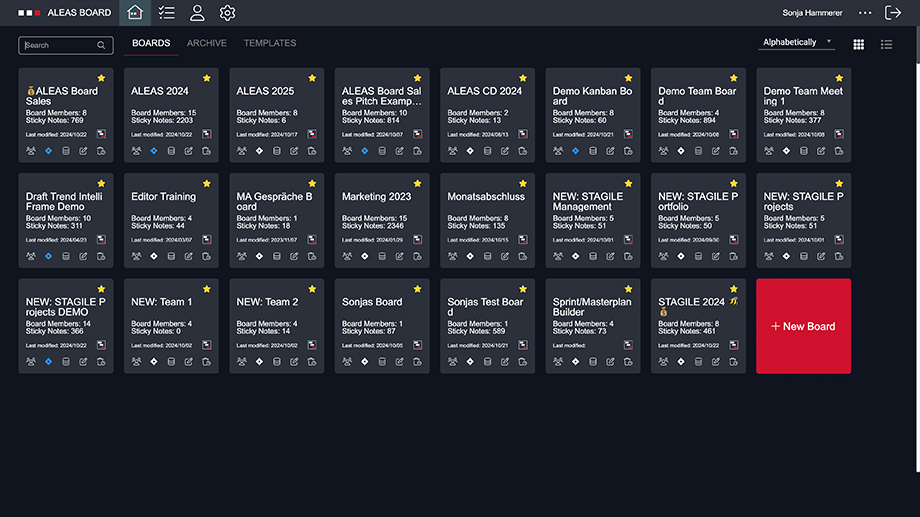
An ALEAS Board is a virtually infinite digital canvas. You can use boards either individually or collaboratively with your team. In your dashboard, all your boards are displayed as tiles.
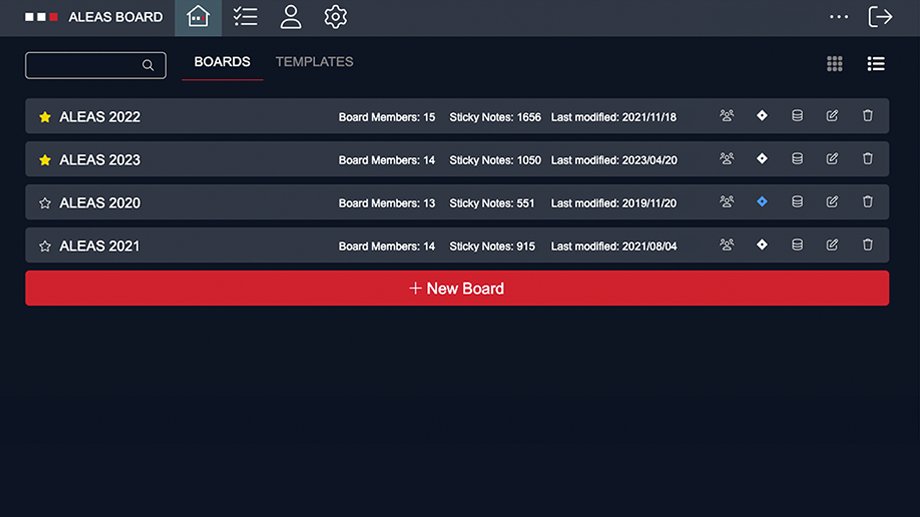
In the dashboard, you can switch between two views: the classic tile view or the list view. The list view is especially useful for smaller screens. With the two buttons in the upper-right corner, you can easily switch between the views with a single click.
Board Management
Board Tile
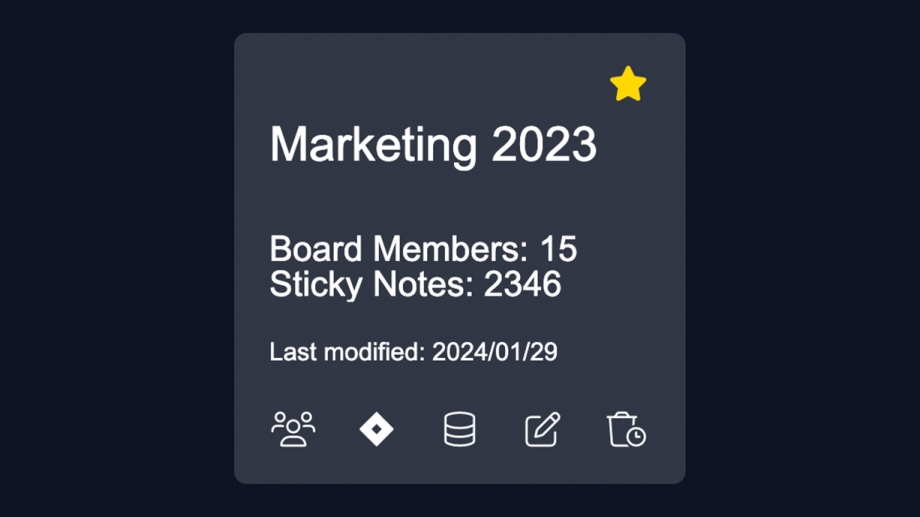
Each board is represented by a gray tile. In the bottom bar, you’ll find buttons for managing board members, renaming, archiving, and deleting the board, as well as the Jira activation/deactivation and backup features.
You can select favorites with just one click. Simply click the star button in the upper-right corner of the board tile to mark a board as a favorite. Favorite boards are displayed at the top of the dashboard.
Board Management
Create Board
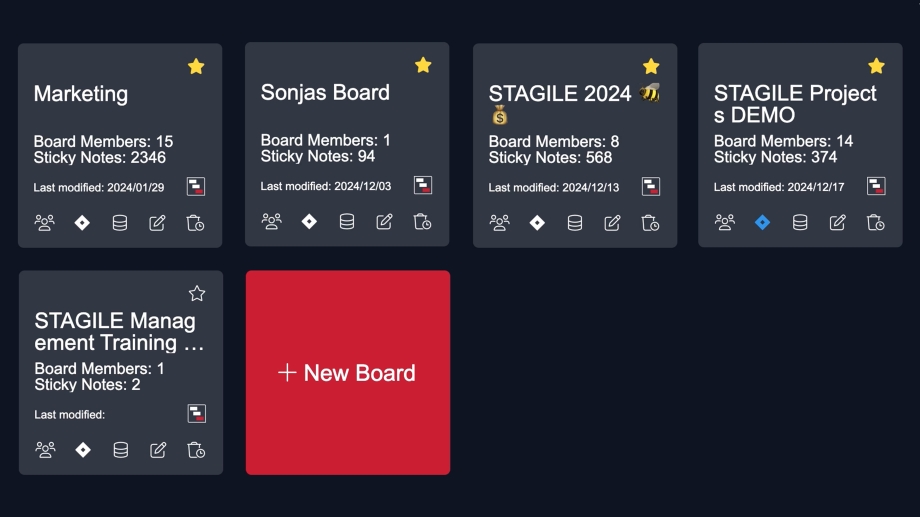
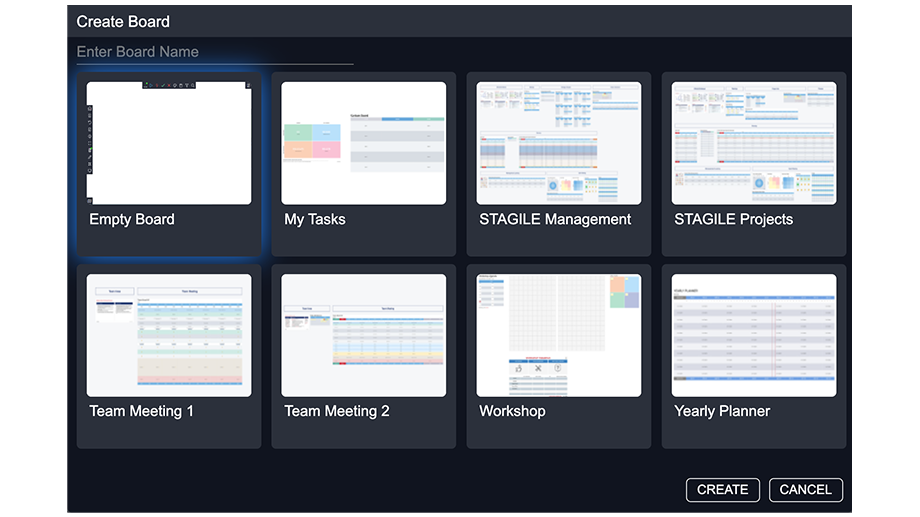
To create a new board, click the red “New Board” tile at the bottom. Give your board a title and choose between an empty board or one of the predefined templates. The template boards include, among others, a STAGILE® Projects board and a STAGILE® Management Board.
Board Management
Board Members
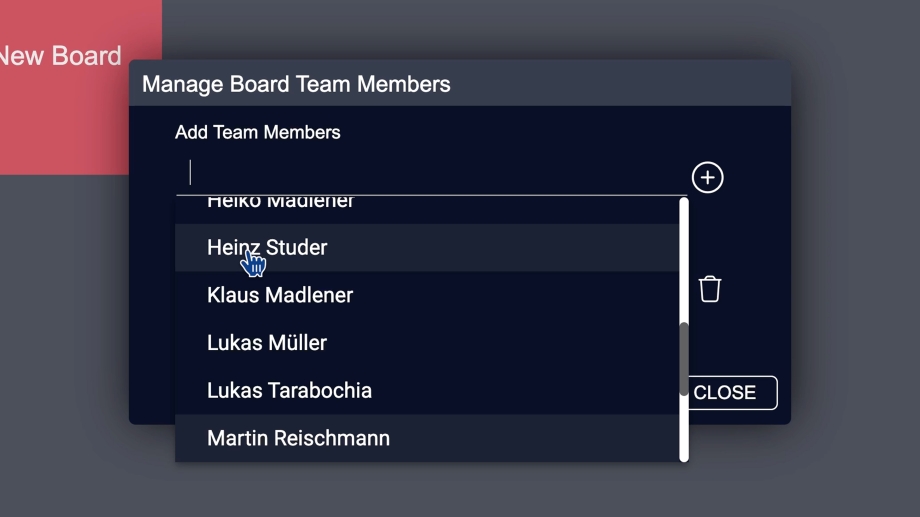
If you want to collaborate with your team, you can invite additional members to your board. To do this, click the “Manage Board Team Members” button. In the pop-up menu, select the desired users from the dropdown menu and add them to the board using the plus button. You can invite all licensed users from your organization.
Afterwards, you can assign permissions to the board members.
There are three user roles in total:
Read: The user has read-only access. They can view the board but cannot edit it, meaning they cannot add templates or IntelliStickies.
Write: The user can add, edit, or delete sticky notes.
Admin: The user has full access to all tools and features, including sticky notes, templates, backups, and user management.
All users can change their own user color and upload a profile picture (see the User Profile section).
Board Management
Backups
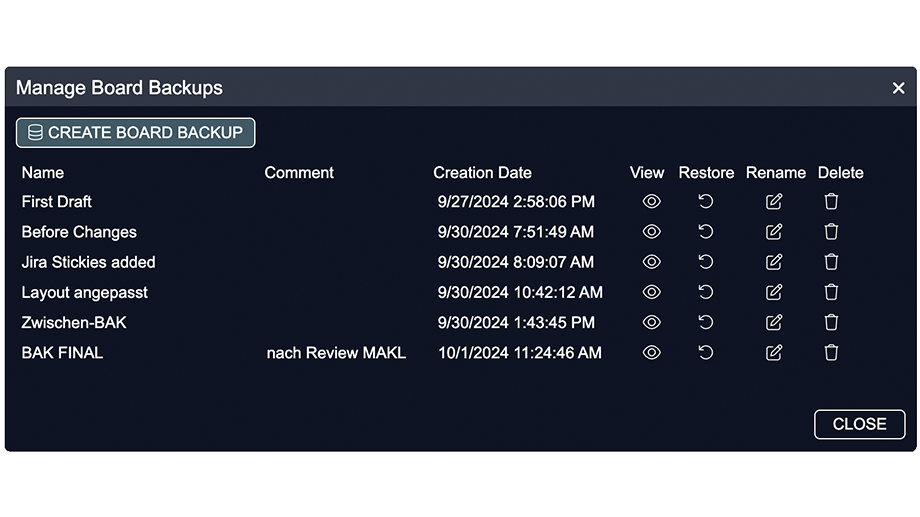
You’ll also find the Backup feature in the board tile — ideal for documentation and version control. To create a new backup, click the “Create Board Backup” button. Enter a title and optionally add a comment, then click “Save.” Time and date are added automatically. Existing backups can be viewed, restored, renamed, or deleted at any time.
Using the View button, you can open a read-only version of the backup. All information — including links and descriptions — is accessible but cannot be edited. With the appropriate permissions, you can export sticky notes and copy them into another board, as well as download templates or save them to your personal library.
With Restore, you can restore any backup either in the same board or in a new board, making it easy to create a copy whenever needed.
Tip: The “Restore” option is also a simple way to quickly create a new board that already contains templates.
Board Management
Delete & archive Boards
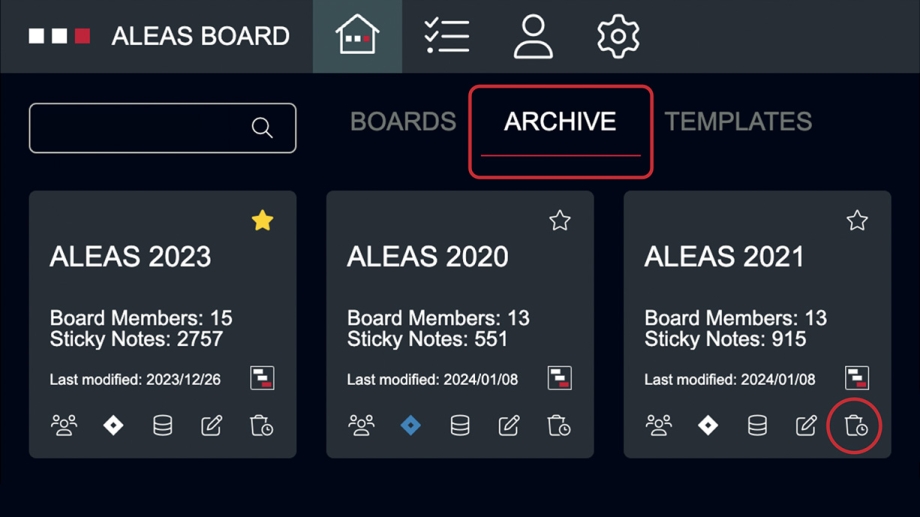
With the trash button in the lower-right corner of the board tile, you can delete or archive boards.
- Deleted boards are permanently removed.
- Archived boards are moved to the “Archive” section, where they remain accessible in read-only mode and can be restored at any time by the Board Administrator to make them visible again on the dashboard.
Board Management
Dashboard
An ALEAS Board is a virtually infinite digital canvas. You can use boards either individually or collaboratively with your team. In your dashboard, all your boards are displayed as tiles.
In the dashboard, you can switch between two views: the classic tile view or the list view. The list view is especially useful for smaller screens. With the two buttons in the upper-right corner, you can easily switch between the views with a single click.
Board Management
Board Tile
Each board is represented by a gray tile. In the bottom bar, you’ll find buttons for managing board members, renaming, archiving, and deleting the board, as well as the Jira activation/deactivation and backup features.
You can select favorites with just one click. Simply click the star button in the upper-right corner of the board tile to mark a board as a favorite. Favorite boards are displayed at the top of the dashboard.
Board Management
Create Board
To create a new board, click the red “New Board” tile at the bottom. Give your board a title and choose between an empty board or one of the predefined templates. The template boards include, among others, a STAGILE® Projects board and a STAGILE® Management Board.
Board Management
Board Members
If you want to collaborate with your team, you can invite additional members to your board. To do this, click the “Manage Board Team Members” button. In the pop-up menu, select the desired users from the dropdown menu and add them to the board using the plus button. You can invite all licensed users from your organization.
Afterwards, you can assign permissions to the board members.
There are three user roles in total:
Read: The user has read-only access. They can view the board but cannot edit it, meaning they cannot add templates or IntelliStickies.
Write: The user can add, edit, or delete sticky notes.
Admin: The user has full access to all tools and features, including sticky notes, templates, backups, and user management.
All users can change their own user color and upload a profile picture (see the User Profile section).
Board Management
Backups
You’ll also find the Backup feature in the board tile — ideal for documentation and version control. To create a new backup, click the “Create Board Backup” button. Enter a title and optionally add a comment, then click “Save.” Time and date are added automatically. Existing backups can be viewed, restored, renamed, or deleted at any time.
Using the View button, you can open a read-only version of the backup. All information — including links and descriptions — is accessible but cannot be edited. With the appropriate permissions, you can export sticky notes and copy them into another board, as well as download templates or save them to your personal library.
With Restore, you can restore any backup either in the same board or in a new board, making it easy to create a copy whenever needed.
Tip: The “Restore” option is also a simple way to quickly create a new board that already contains templates.
Board Management
Delete & archive Boards
With the trash button in the lower-right corner of the board tile, you can delete or archive boards.
- Deleted boards are permanently removed.
- Archived boards are moved to the “Archive” section, where they remain accessible in read-only mode and can be restored at any time by the Board Administrator to make them visible again on the dashboard.