

Jira Integration
Setup
With the ALEAS Board Jira integration, you can easily connect your boards to your Jira instance and enable Jira Sync for each board. Changes are synchronized in both directions.
Setup: Please note that the Jira integration must first be configured in your organization’s environment before boards can be linked to Jira. The ALEAS Board Jira integration works both on-premises and in the cloud version. If you need information about activating HotSync for Jira, please contact our software team.
Permissions: Users can only edit, import, or export Jira-linked stickies if they have the required permissions.
Jira Integration
Activate Jira
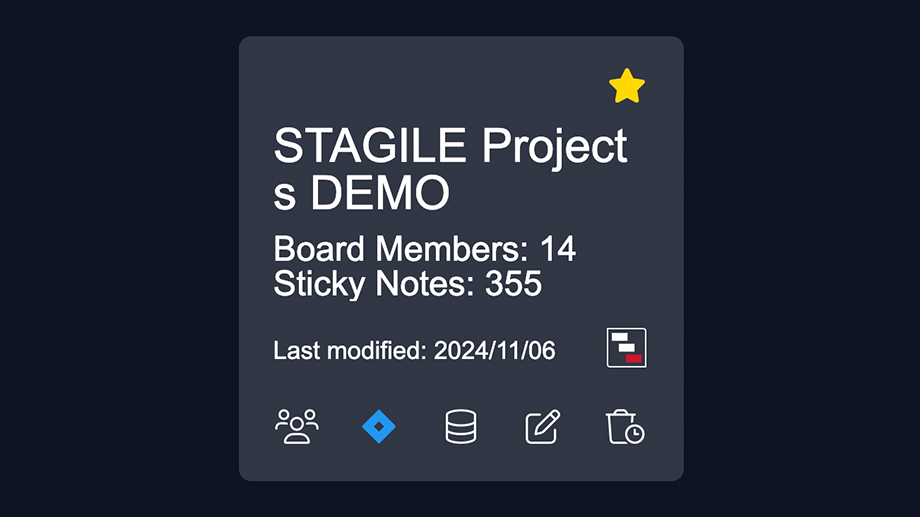
Jira Activation per Board: Jira synchronization can be enabled or disabled by the Board Admin for each board in the dashboard using the Jira button on the board tile. A blue button means that Jira is active.
Authentication: When accessing Jira for the first time, a one-time Jira login is required. The credentials are then saved for all future logins across all boards.
Jira Integration
Status Sync
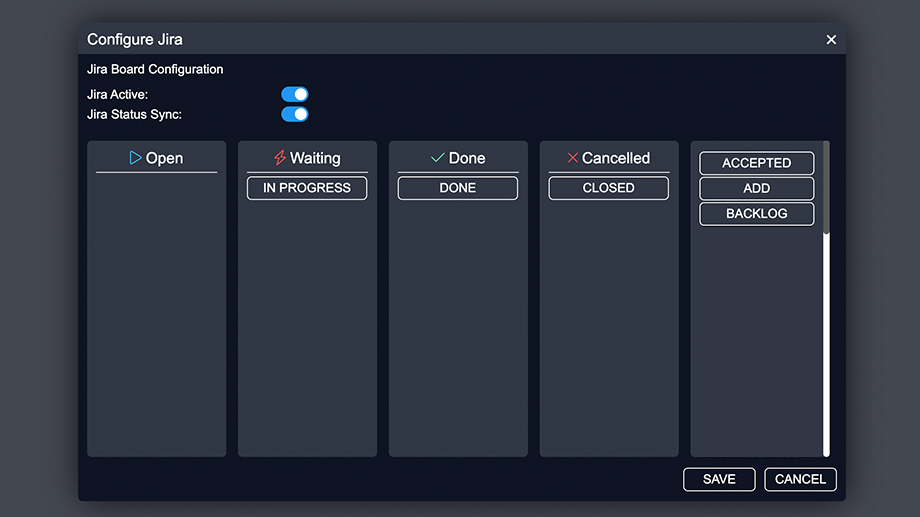
The Board Admin can activate Jira Status Sync for each board. When Status Sync is set to “active,” a configuration dialog appears where the Board Admin can individually map each Jira status to an ALEAS Board sticky status.
As a result, the defined statuses are synchronized in both directions.
Jira Integration
Export IntelliSticky
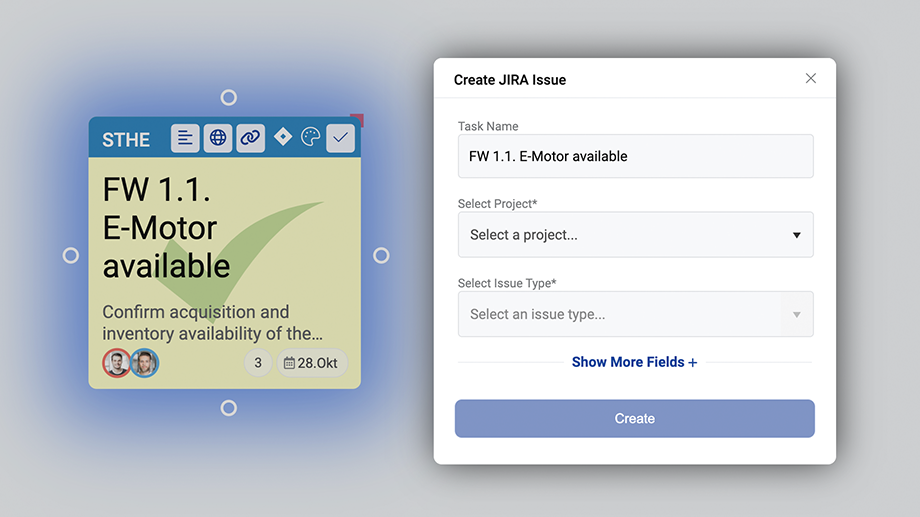
When you click the Jira button in the menu bar of an IntelliSticky, you can export it as a Jira issue. Each IntelliSticky is created as a new Jira issue.
The fields Project, Issue Type, Components, and Summary (Task Name) can be edited. The Reporter — the user who created the sticky — and the Assignee — the Sticky Owner — are exported automatically.
Jira Integration
Import Jira Issue
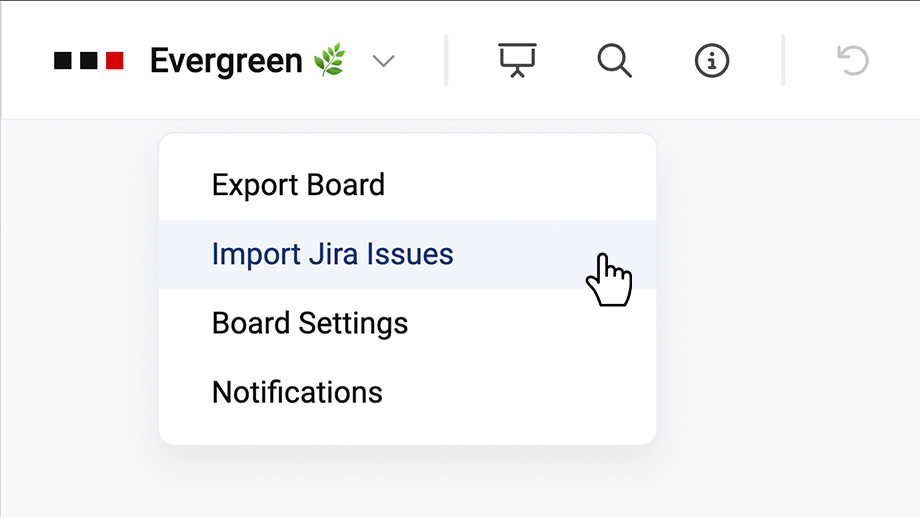
In the dropdown menu next to the board title in the upper-left corner, you’ll find the “Import Jira Issues” feature, which allows you to import Jira issues directly into ALEAS Board, including the fields Project, Issue Type, Reporter, Status, Components, Assignee, Due Date, Task Key, and Summary.
Multiple Jira issues can be imported at the same time. Each Jira issue is converted into a sticky.
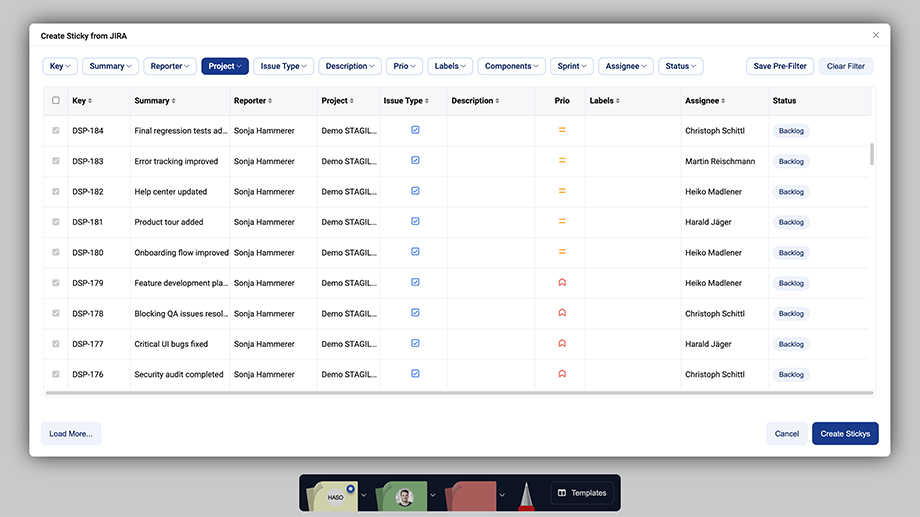
You can apply various filters to narrow down Jira projects and issues. With the “Save Pre-Filter” button in the upper-right corner, you can save your preferred filter settings.
Jira Integration
Jira Filter
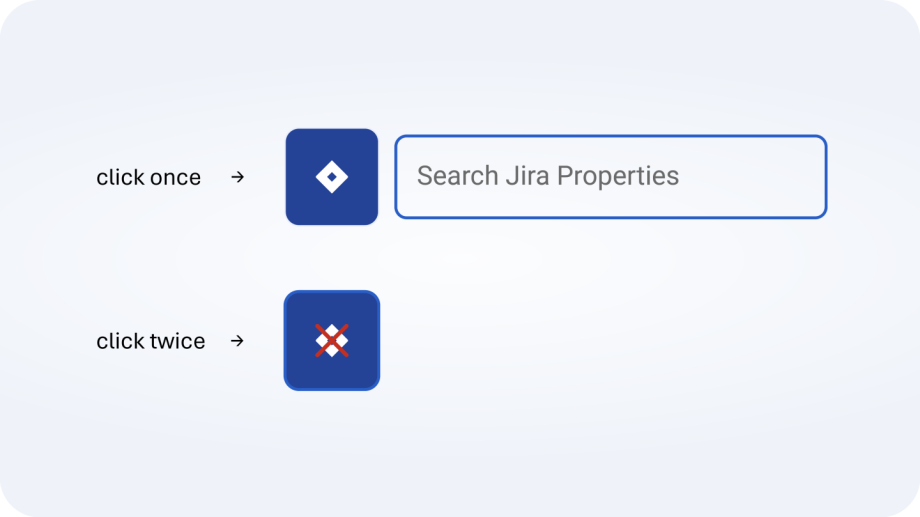
A Jira filter is also available in the Filter Bar.
- Click once: Displays all Jira-linked stickies and opens the full-text search, which searches across all Jira properties.
- Click twice: Filters all stickies that are not linked to Jira.
Jira Integration
Setup
With the ALEAS Board Jira integration, you can easily connect your boards to your Jira instance and enable Jira Sync for each board. Changes are synchronized in both directions.
Setup: Please note that the Jira integration must first be configured in your organization’s environment before boards can be linked to Jira. The ALEAS Board Jira integration works both on-premises and in the cloud version. If you need information about activating HotSync for Jira, please contact our software team.
Permissions: Users can only edit, import, or export Jira-linked stickies if they have the required permissions.
Jira Integration
Activate Jira
Jira Activation per Board: Jira synchronization can be enabled or disabled by the Board Admin for each board in the dashboard using the Jira button on the board tile. A blue button means that Jira is active.
Authentication: When accessing Jira for the first time, a one-time Jira login is required. The credentials are then saved for all future logins across all boards.
Jira Integration
Status Sync
The Board Admin can activate Jira Status Sync for each board. When Status Sync is set to “active,” a configuration dialog appears where the Board Admin can individually map each Jira status to an ALEAS Board sticky status.
As a result, the defined statuses are synchronized in both directions.
Jira Integration
Export IntelliSticky
When you click the Jira button in the menu bar of an IntelliSticky, you can export it as a Jira issue. Each IntelliSticky is created as a new Jira issue.
The fields Project, Issue Type, Components, and Summary (Task Name) can be edited. The Reporter — the user who created the sticky — and the Assignee — the Sticky Owner — are exported automatically.
Jira Integration
Import Jira Issue
In the dropdown menu next to the board title in the upper-left corner, you’ll find the “Import Jira Issues” feature, which allows you to import Jira issues directly into ALEAS Board, including the fields Project, Issue Type, Reporter, Status, Components, Assignee, Due Date, Task Key, and Summary.
Multiple Jira issues can be imported at the same time. Each Jira issue is converted into a sticky.
You can apply various filters to narrow down Jira projects and issues. With the “Save Pre-Filter” button in the upper-right corner, you can save your preferred filter settings.
Jira Integration
Jira Filter
A Jira filter is also available in the Filter Bar.
- Click once: Displays all Jira-linked stickies and opens the full-text search, which searches across all Jira properties.
- Click twice: Filters all stickies that are not linked to Jira.