

Template Management
Template Mode
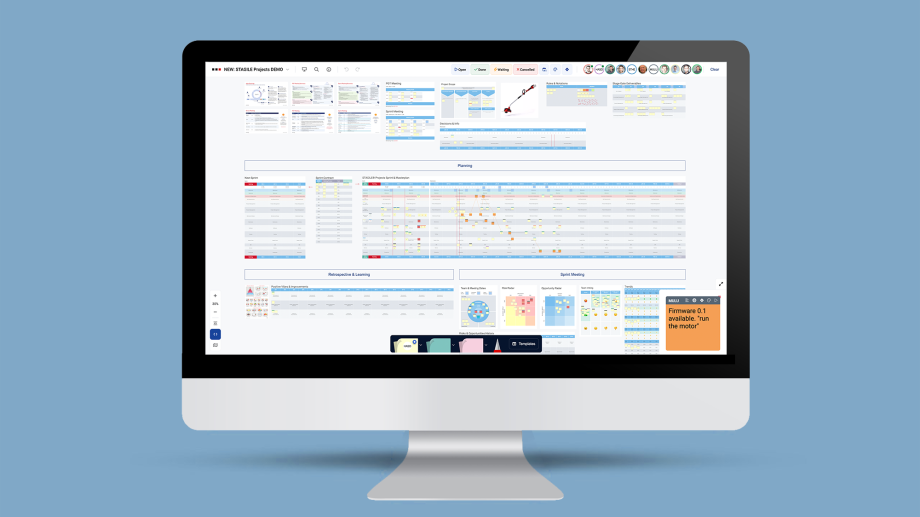
Activate Template Mode (located in the main toolbar at the bottom center) to add templates to your board. You can upload files from your device, create new templates using the Template Editor, or insert templates and IntelliFrames directly from the library.
Template Management
Template Upload
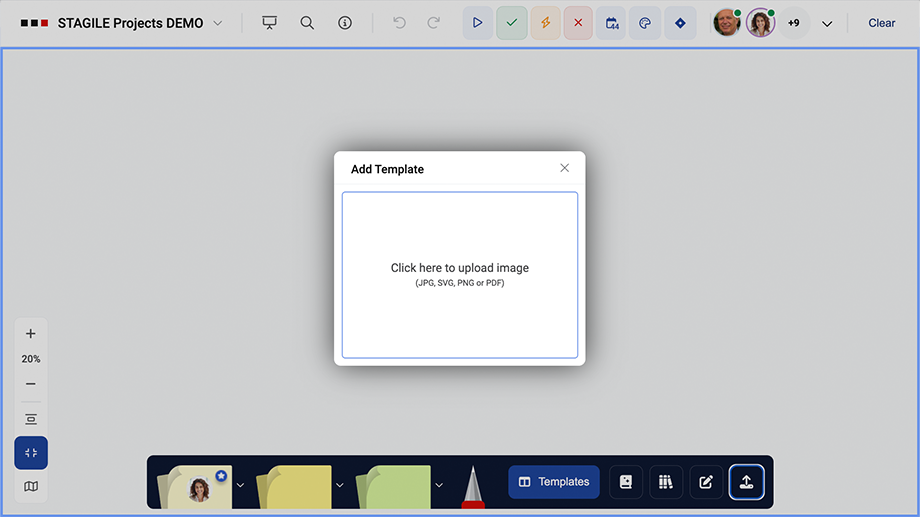
Activate Template Mode in the toolbar and upload a file using the Upload Tool (the last button in the template toolbar). Uploads can be a maximum of 6 MB.
Place the template on the board. You can then resize the template as needed and, of course, move it freely around the board. Templates can be uploaded as SVG, PDF, PNG, or JPG files.
Board administrators can also add files directly to a board using copy & paste or drag & drop. This means, for example, that you can insert screenshots directly into the board. Existing templates on the board can also be duplicated using copy & paste.
Template Management
Library
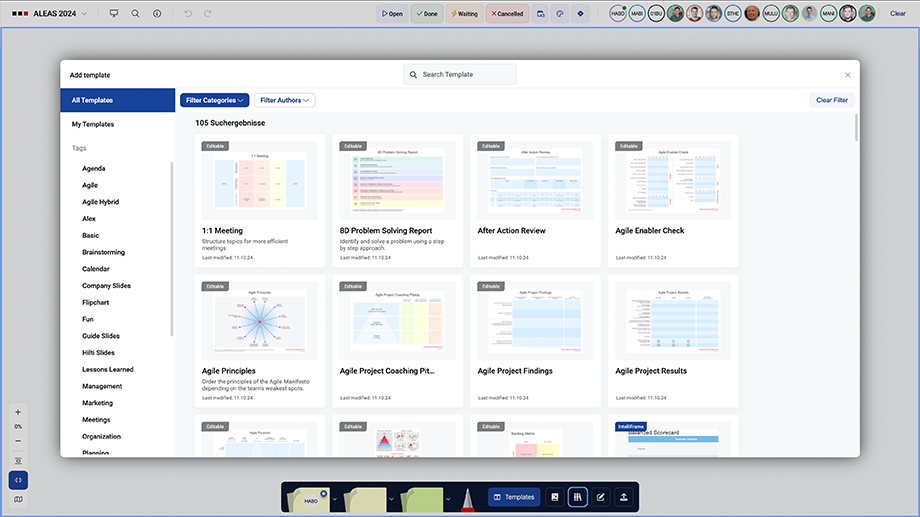
Template Management
Template Editor
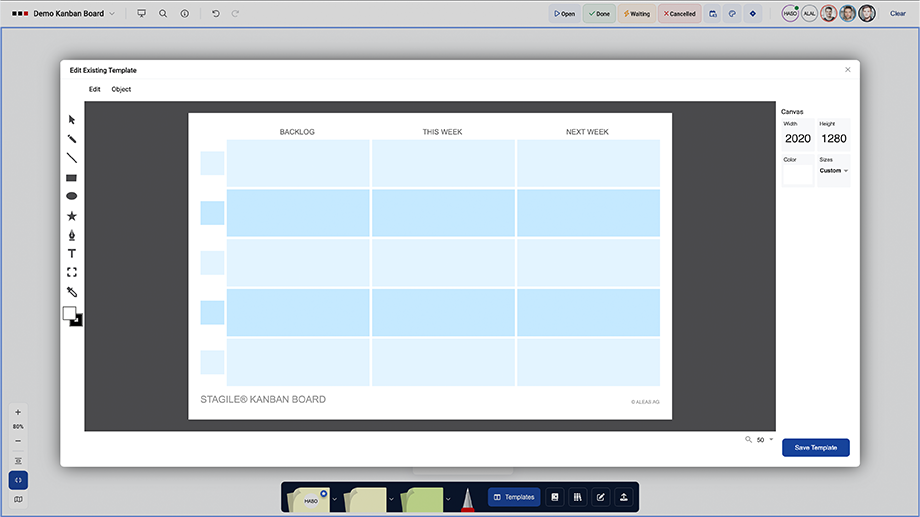
The Template Editor is integrated into the Template Tool and allows you to create high-performance, high-resolution graphics from scratch or edit existing templates without leaving ALEAS Board. The Template Editor is a comprehensive SVG drawing tool that lets you quickly create simple shapes or text boxes, while also supporting the design of more complex templates. The SVG format offers several advantages, such as scalability without loss of quality.
Tools
- Selection Tool: Select and move objects
- Pen Tool: Draw freehand lines
- Line: Draw straight lines at any angle
- Rectangle: Draw rectangular objects. Hold Shift to draw a square.
- Ellipse: Draw round objects. Hold Shift to draw a circle.
- Shapes: Add various shapes. Hold Shift to keep proportions while drawing the object.
- Path Tool: Draw freehand paths consisting of straight and/or curved line segments
- Text Tool: Create and edit text
- Eyedropper Tool: Copy and apply color attributes. Select an object, then use the eyedropper to transfer the color from another object to the selected object.
- Fill Color: Adjust the fill color
- Stroke Color: Adjust the stroke color
Shortcuts
Here are some useful shortcuts for working in the Template Editor:
- Ctrl + Z = Undo
- Ctrl + C = Copy
- Ctrl + V = Paste
- Ctrl + D = Duplicate
- Hold Ctrl and click multiple elements to multiselect
- Ctrl + G = Group elements. Select multiple elements using multiselect, then group them.
- Hold Alt and drag elements to duplicate them
- Hold Shift while scaling or drawing an object to keep the proportions
- Hold Shift while moving an object vertically or horizontally to keep it on the same X or Y axis.
Template Management
Edit Templates
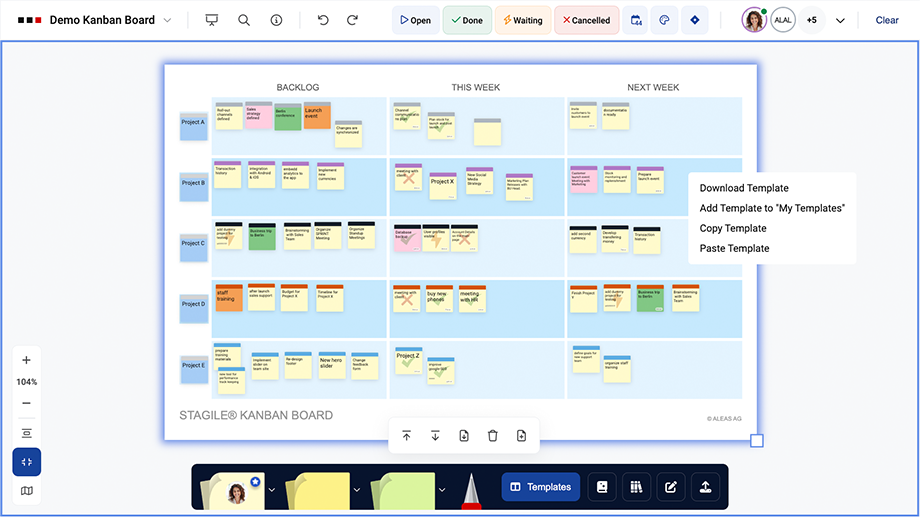
The Template Bar, located above the bottom toolbar once Template Mode is activated, offers various functions for templates that have already been uploaded.
You can use it to:
- delete templates
- change their position, for example by moving a template to the foreground or background, while all IntelliStickies always remain on the top layer
- download templates
- add templates to “My Templates”
Click on a template — the selected template is highlighted with a blue border — and then use the corresponding buttons to edit it.
If you select a template on the board, shown with a blue border, and upload a new file, the selected template will be replaced by the new one. This feature is especially useful when you want to update a template that is already integrated into the board while keeping its position and size unchanged.
Right-click a template to copy and paste it, download it as an SVG file, or add it to your personal library.
Template Management
IntelliFrames
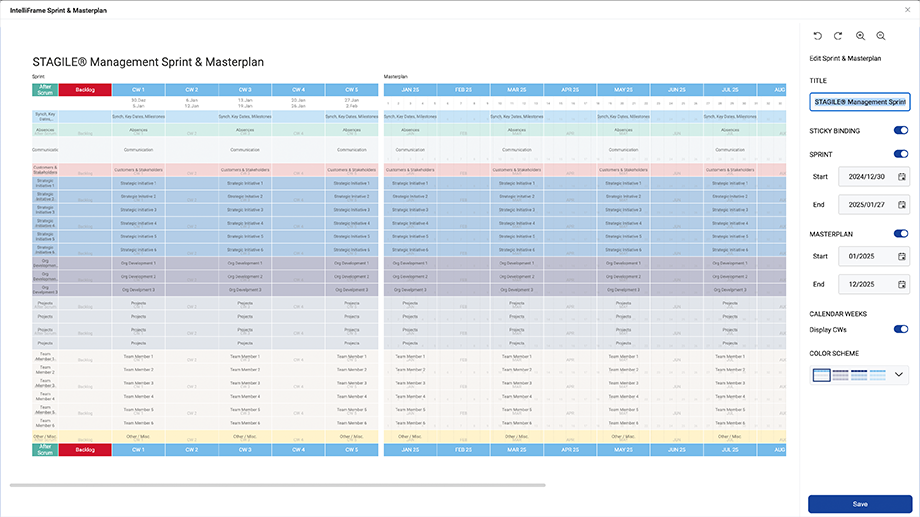
Our IntelliFrames are special templates that are automatically created based on predefined parameters, including Agenda, Spreadsheet, and Sprint & Master Plan.
You can find all details in the “IntelliFrames” section.
Template Management
Template Mode
Activate Template Mode (located in the main toolbar at the bottom center) to add templates to your board. You can upload files from your device, create new templates using the Template Editor, or insert templates and IntelliFrames directly from the library.
Template Management
Template Upload
Activate Template Mode in the toolbar and upload a file using the Upload Tool (the last button in the template toolbar). Uploads can be a maximum of 6 MB.
Place the template on the board. You can then resize the template as needed and, of course, move it freely around the board. Templates can be uploaded as SVG, PDF, PNG, or JPG files.
Board administrators can also add files directly to a board using copy & paste or drag & drop. This means, for example, that you can insert screenshots directly into the board. Existing templates on the board can also be duplicated using copy & paste.
Template Management
Library
Template Management
Template Editor
The Template Editor is integrated into the Template Tool and allows you to create high-performance, high-resolution graphics from scratch or edit existing templates without leaving ALEAS Board. The Template Editor is a comprehensive SVG drawing tool that lets you quickly create simple shapes or text boxes, while also supporting the design of more complex templates. The SVG format offers several advantages, such as scalability without loss of quality.
Tools
- Selection Tool: Select and move objects
- Pen Tool: Draw freehand lines
- Line: Draw straight lines at any angle
- Rectangle: Draw rectangular objects. Hold Shift to draw a square.
- Ellipse: Draw round objects. Hold Shift to draw a circle.
- Shapes: Add various shapes. Hold Shift to keep proportions while drawing the object.
- Path Tool: Draw freehand paths consisting of straight and/or curved line segments
- Text Tool: Create and edit text
- Eyedropper Tool: Copy and apply color attributes. Select an object, then use the eyedropper to transfer the color from another object to the selected object.
- Fill Color: Adjust the fill color
- Stroke Color: Adjust the stroke color
Shortcuts
Here are some useful shortcuts for working in the Template Editor:
- Ctrl + Z = Undo
- Ctrl + C = Copy
- Ctrl + V = Paste
- Ctrl + D = Duplicate
- Hold Ctrl and click multiple elements to multiselect
- Ctrl + G = Group elements. Select multiple elements using multiselect, then group them.
- Hold Alt and drag elements to duplicate them
- Hold Shift while scaling or drawing an object to keep the proportions
- Hold Shift while moving an object vertically or horizontally to keep it on the same X or Y axis.
Template Management
Edit Templates
The Template Bar, located above the bottom toolbar once Template Mode is activated, offers various functions for templates that have already been uploaded.
You can use it to:
- delete templates
- change their position, for example by moving a template to the foreground or background, while all IntelliStickies always remain on the top layer
- download templates
- add templates to “My Templates”
Click on a template — the selected template is highlighted with a blue border — and then use the corresponding buttons to edit it.
If you select a template on the board, shown with a blue border, and upload a new file, the selected template will be replaced by the new one. This feature is especially useful when you want to update a template that is already integrated into the board while keeping its position and size unchanged.
Right-click a template to copy and paste it, download it as an SVG file, or add it to your personal library.
Template Management
IntelliFrames
Our IntelliFrames are special templates that are automatically created based on predefined parameters, including Agenda, Spreadsheet, and Sprint & Master Plan.
You can find all details in the “IntelliFrames” section.